
Sometimes you make payments using Apple Pay or Google Pay, and the last digits of the card shown in the transaction may not match the number on your physical card.
This is expected behaviour because these wallets use a virtual card number (Device Account Number) for security.
If we need to verify a payment, you can find this number in their wallet settings.
Apple Pay (iPhone)
Step 1:
Open the Wallet app on your iPhone.
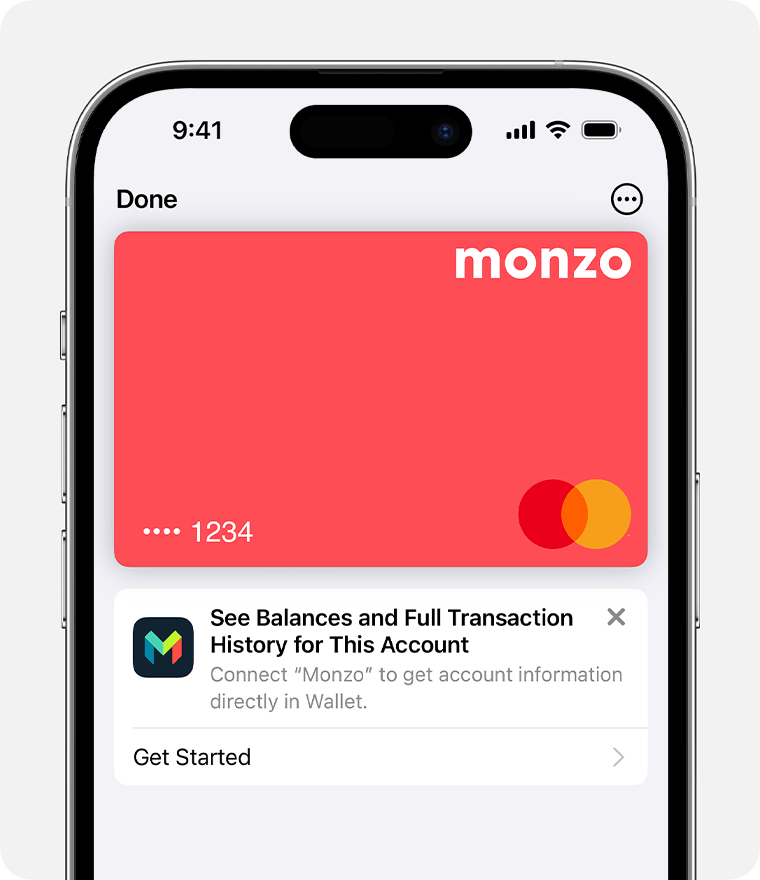

Step 2
Select the card used for the payment.
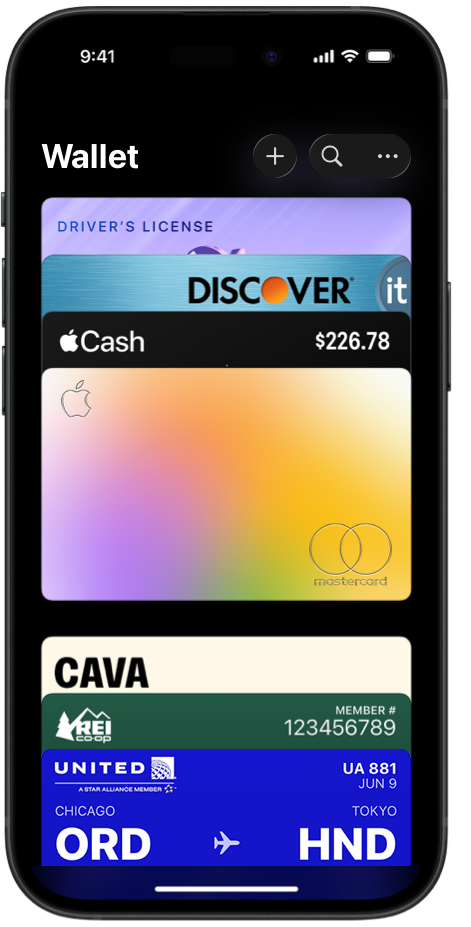
Step 3
Tap the three dots in the top-right corner.
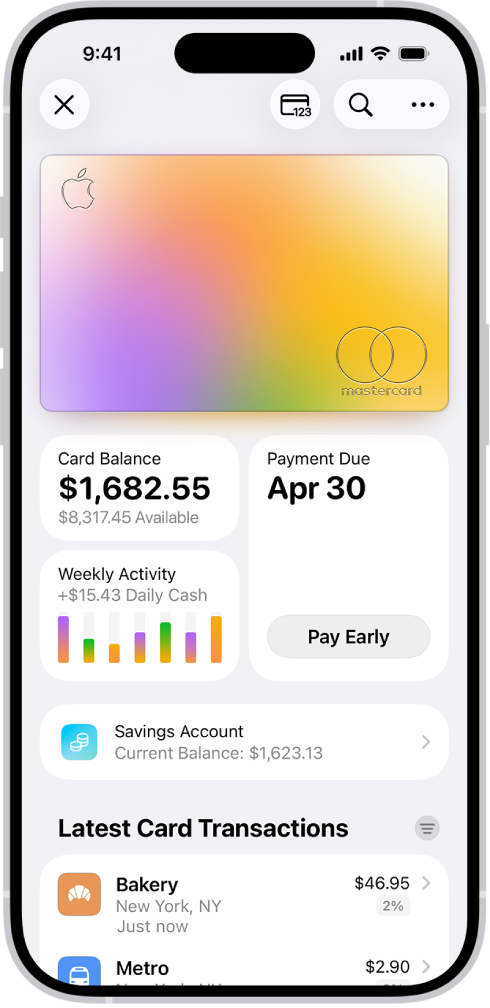
Step 4
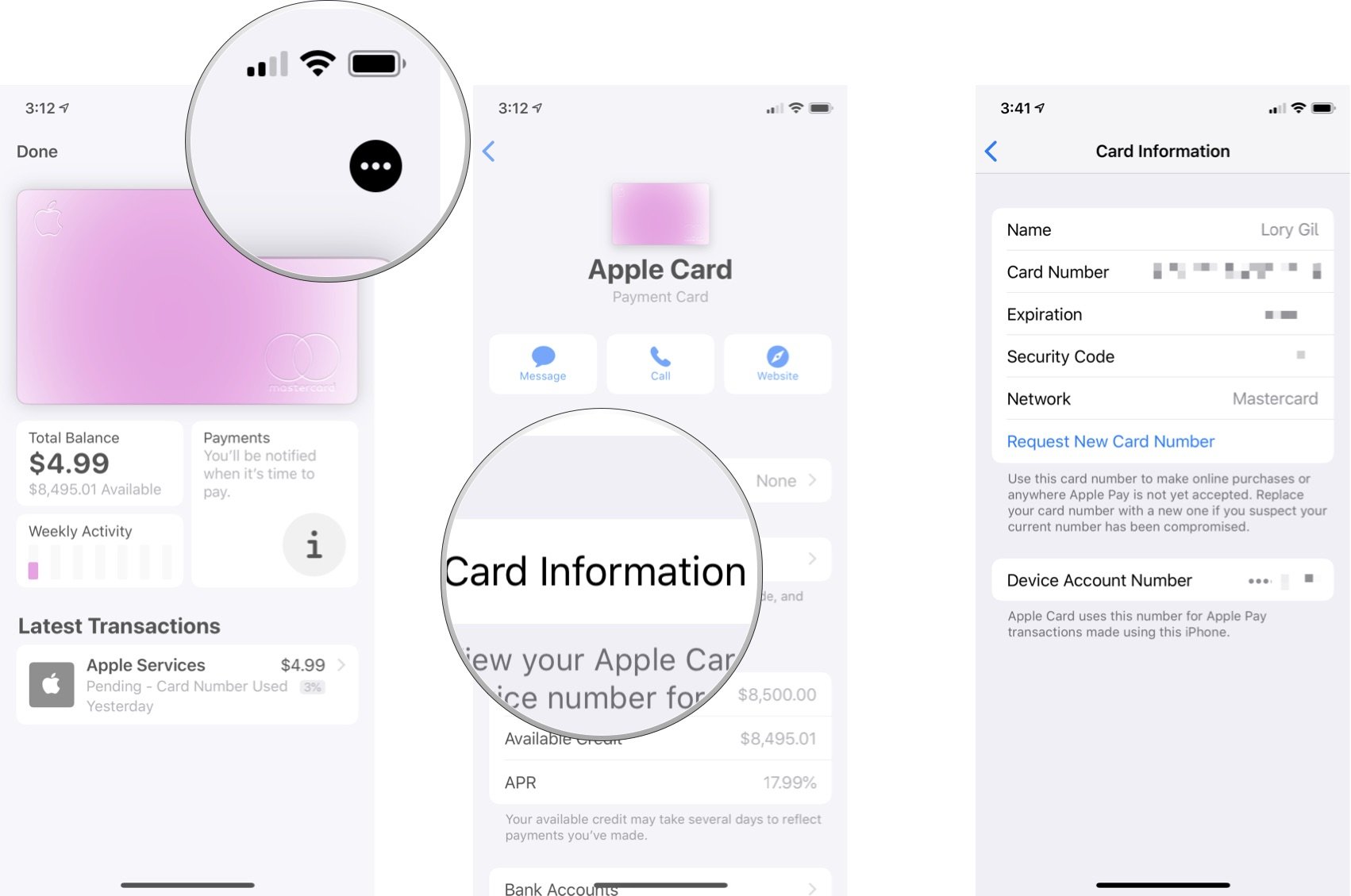
Tap Card Details → Card Number.
Step 5
Authenticate using Face ID / Touch ID / Passcode.
You will then see the Device Account Number — this is the virtual card number used for Apple Pay transactions.
Google Pay / Google Wallet (Android)
Step 1
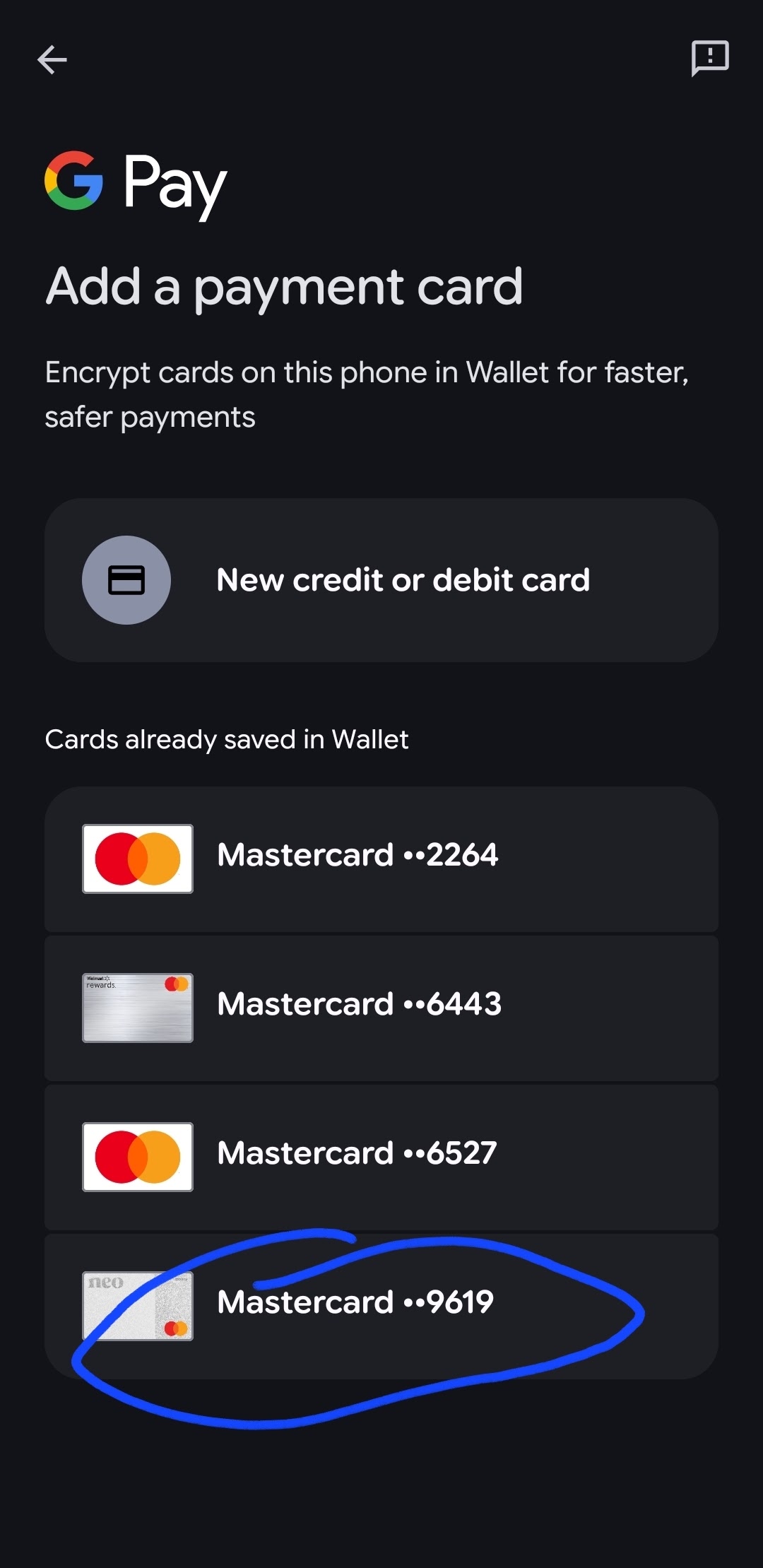
Open the Google Wallet / Google Pay app.
Step 2
Select the card used for the payment.
.  .
. 
Step 3
Tap Card Details.
Step 4
Locate the Virtual Card Number / Device Account Number.
Here, the user will see the virtual card digits used for Google Pay transactions.

Payments made through Apple Pay or Google Pay use a virtual card number.
This is called a Device Account Number.
Because of this, the last four digits may differ from the physical card.
Comments
0 comments
Please sign in to leave a comment.